We (IT) are rolling out a new way to identify and report phishing. It is named KillPhish and you can think of it as a "report suspicious email" button right within your inbox. Here's a breakdown of how to use the KillPhish button in Outlook 365 on both computer and cell Phone.
What is the KillPhish Button? 
The KillPhish button is a security tool designed to help you quickly report and remove suspicious emails, especially phishing attempts, from your Outlook 365 inbox. It streamlines the process of alerting your IT or security team and helps prevent others in our organization from falling victim to the same threat.
How to Use KillPhish in Outlook 365 (Computer):
- Identify a Suspicious Email:
- Look for emails that seem unusual, contain urgent or threatening language, request personal information, or have suspicious links or attachments.
- Locate the KillPhish Button:
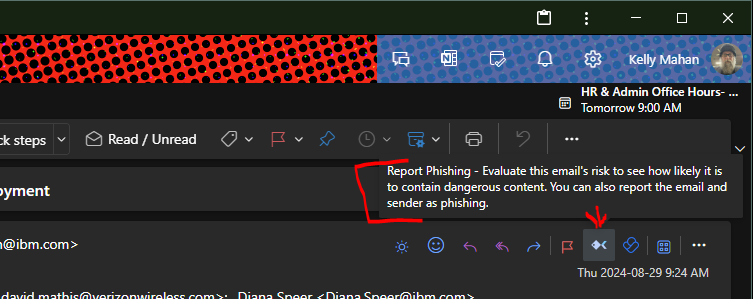
- The KillPhish button can be found as an add-in button in the email itself. water
- If you do not see it, submit a ticket: https://hivalliance.freshdesk.com/support/tickets/new
- Click the KillPhish Button:
- Once you've found the button, click it.
- Confirm the Report:
- A pop-up window or dialog box will likely appear, asking you to confirm that you want to report the email.
- You might be asked to provide additional information, such as why you think the email is suspicious.
- Email Removal:
- After confirming, the KillPhish tool will typically remove the email from your inbox and send a report to your security team.
- Sometimes, if the email is deemed malicious by the system, it will be removed from all users in the organization.
How to Use KillPhish on Outlook 365 (cell phone):
- Open the Suspicious Email:
- Launch the Outlook app on your Cell phone device and open the email you suspect is a phishing attempt.
- Find the "..." (More Options) Menu:
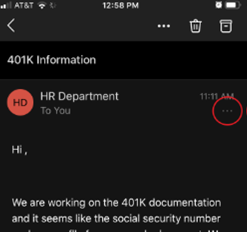
- Look for the three vertical dots (ellipsis) or the "..." icon, which usually indicates the "More Options" menu. It's typically located in the upper right corner of the email.
- Locate the KillPhish Option:
- Tap the "..." menu. Scroll through the options until you find "KillPhish" or a similar option related to reporting phishing.
- If you do not see it, submit a ticket: https://hivalliance.freshdesk.com/support/tickets/new
- Tap the KillPhish Option:
- Tap the KillPhish option to report the email.
- Confirm the Report:
- You might be prompted to confirm your report. Tap "Yes" or "Confirm."
- Email Handling:
- The app will then send a report to your security team and remove the email from your inbox.
- As with the computer version, if the email is deemed malicious, it may be removed from all users.
Important Notes:
- Stay Vigilant: Even with the KillPhish button, it's crucial to remain vigilant and practice safe email habits.
For a graphical look at how to use KillPhish see below:
Computer in Outlook 365:
1. Click onto this reporting button 
In the top right of your Outlook email ribbon, or as pictured below
2. Evaluate the email and determine if the email needs to be reported as Phishing.
If the email should be reported, click the  button, and you're done!
On your cell phone:
1. Select an email
2. Find and tap the three little dots then scroll down and tap the Reporting Phishing 
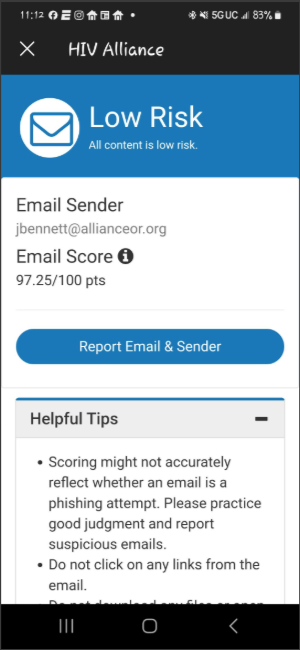
3. Evaluate the email and determine if the email needs to be reported as Phishing.
4. If the email should be reported, click the  button, and you're done!
Was this article helpful?
That’s Great!
Thank you for your feedback
Sorry! We couldn't be helpful
Thank you for your feedback
Feedback sent
We appreciate your effort and will try to fix the article