How to Add an Email Signature in Outlook App on Android
Step 1:
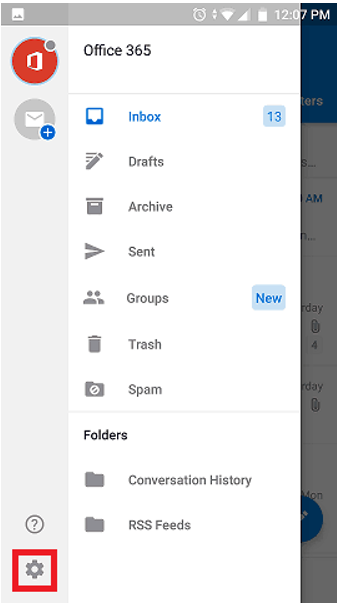
Open the Outlook App on your Android device. Tap the menu button from the top left.
Step 2:
Tap the settings gear icon on the bottom left of the menu.

Step 3:
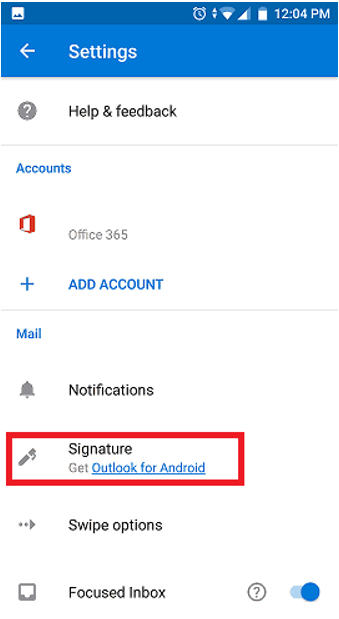
When you’re in the settings menu, tap on the signature section.
Step 4:
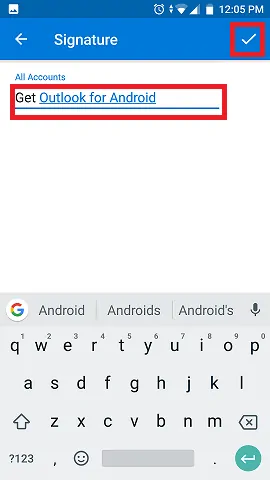
Paste your new email signature into the text box provided and then tap the tick in the top right corner to save the signature.
Step 5:
Your email signature is now installed!
Was this article helpful?
That’s Great!
Thank you for your feedback
Sorry! We couldn't be helpful
Thank you for your feedback
Feedback sent
We appreciate your effort and will try to fix the article