follow these easy steps below.
- Go to the Settings on your iPhone or iPad and click it
- Locate your Outlook mail app and tap it
- Log onto your Outlook mail app and you will see a gear icon, click on it
- Go to Settings and Select Signatures. At this point you can choose to personalize signatures per account or create for all accounts
- Write some text on the text field and click on "OK" once you are done
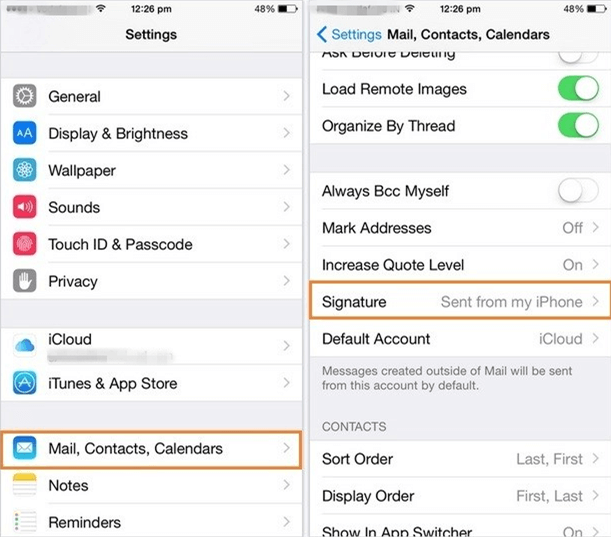
With the above steps, iPhone Outlook signature will always appear at the bottom of your email you send to your contacts instead of "sent from my iPhone". This makes your signature Outlook iPhone more professional among other benefits.
Was this article helpful?
That’s Great!
Thank you for your feedback
Sorry! We couldn't be helpful
Thank you for your feedback
Feedback sent
We appreciate your effort and will try to fix the article