Installing ICANotes (Windows)
1. Type icanotes.com in your browser's address bar.
2. Click the Support tab on the navigation bar.
3. Click the  icon.
icon.
4. Follow the instructions in the left column. Follow step one to download a shortcut icon, as illustrated below.
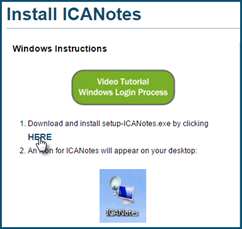
5. The option to Save File pops up. Click Save File.
6. After saving your file, click CTRL + J to pull up your recent download window. (Or, click the  in the top right of your web browser.) Find the setup-ICANotes.exe file and double click.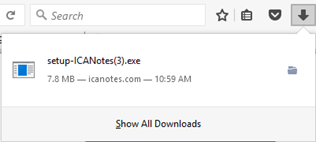
7. You may receive a response from Windows (User Account Control) asking if you want to allow this app to make changes to your PC. Select .
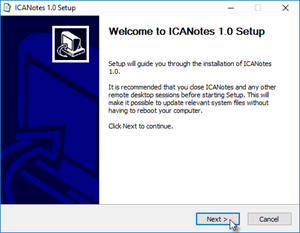
8. The installation process will begin. Follow the prompts to complete the installation.
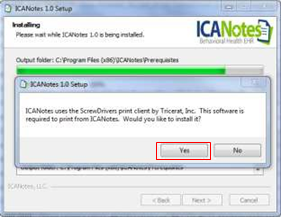
Important: You will be asked if you would like to install Screwdrivers by Tricerat. The Screwdrivers program is required for printing in ICANotes on a Windows computer. When prompted, be sure to click the button.
9. The popup window shown below indicates that the installation process has finished and an ICANotes icon has been placed on your desktop.
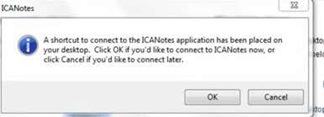
10. Find the icon on your desktop that looks like the one pictured below and double-click to open it. If you experience a certificate error, please see the Windows Connection Troubleshooting section at the bottom of this article to resolve.

11. You may see the following Remote Desktop Connection pop-up window displayed after you have double clicked on the ICANotes icon. Click Don't ask me again for connections to this computer, and then click the  option.
12. You will be prompted to enter your credentials to login.
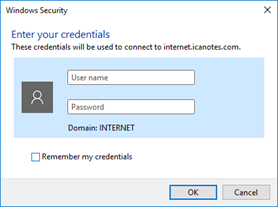
13. In the User name field, enter your username in the following format: INTERNET\username (for example "INTERNET\janedoe", no quotations). Be sure to use a true backslash  as failing to do so will prevent login. The appropriate key for this character is typically found above the
  key on the keyboard.
14. Enter your password in the next field and click the  button.

15. After you log in, you will see a message that says "Welcome to ICANotes." Click  at the bottom of the screen to proceed.
Windows Connection Troubleshooting
If you receive a certificate error stating that "Your remote desktop connection failed because the remote computer cannot be authenticated", please follow these steps:
or
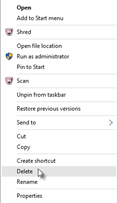
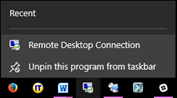
1. Delete icon if one is on your desktop and unpin from the taskbar (as applicable).
Deleting icon
Unpinning from the taskbar.
2. Click Search.
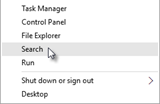
3. Search for remote desktop connection.
4. Right click and select Send to Desktop.
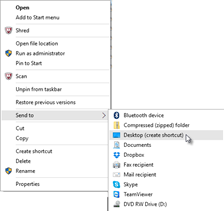
5. If you use Windows 10 Cortana, right click the Remote Desktop Connection Desktop app and click 'Open file location'.
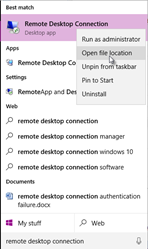
6. On the popup window, select 'Send to' and then 'Desktop (create shortcut)'.
7. The Remote Desktop Connection Icon will be on the desktop.

8. Rename icon to ICANotes by right clicking on the icon and selecting 'Rename'.
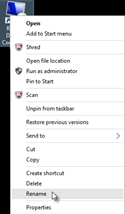
9. Type ICANotes and click outside the field to save the change.

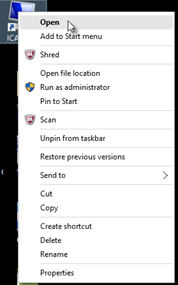
10. Right click the icon and select Open (or Edit).
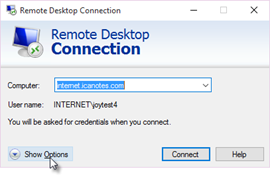
11. Click Show Options.
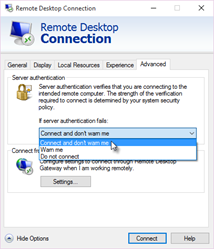
12. Go to the Advanced tab and click the down arrow under Server authentication. Select 'Connect and don't warn me'.
13. Click the  button to start ICANotes.
______________________________________________________________________
Windows 7 Customers: if you are having an issue logging in that is not related to credentials, please follow this link to ensure that you have the latest Windows updates: http://support.microsoft.com/kb/2592687
______________________________________________________________________
Windows XP Customers: If you are having trouble logging in that is not related to credentials, please follow this link to ensure you have the correct version of Remote Desktop, the platform through which ICANotes launches: http://www.microsoft.com/download/en/details.aspx?displaylang=en&id=20609
Please note that Microsoft stopped supporting Windows XP in April 2014. We recommend that you update your operating system to a newer version at this time. If you choose to continue to use Windows XP, you will not be HIPAA compliant.
______________________________________________________________________
Configuring Printers with ICANotes
1. Log out of ICANotes from the Chart Room using the pink  button.
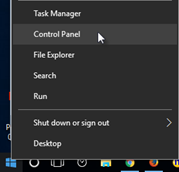
2. Open your Control Panel from the Start menu on your desktop (on newer versions of Window, right click on the  icon in the bottom left).
3. Locate the icon  and click on it.
Note: It may be easier to find if you change the "View by:" setting as shown below.
4. Click on the  tab (in the middle top of the window).
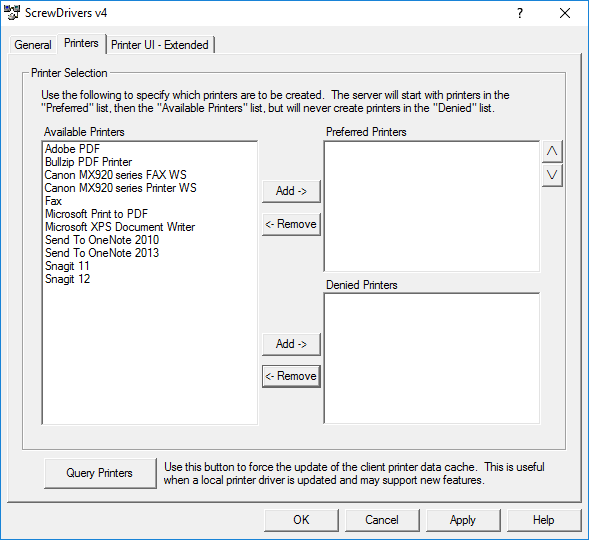
5. Review the printers listed in the “Available Printers” box. Allocate each printer to either the “Preferred Printers” or the “Denied Printers” box using the  or
or  buttons in the middle.
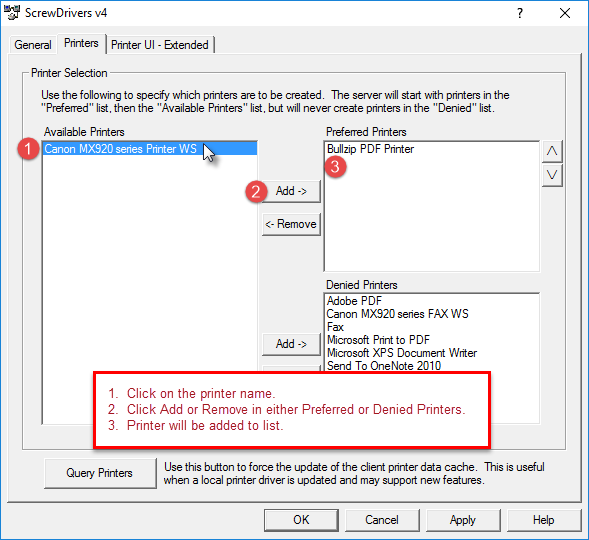
6. Once each printer has been moved to either Preferred Printers or Denied Printers, click on the  button.
Was this article helpful?
That’s Great!
Thank you for your feedback
Sorry! We couldn't be helpful
Thank you for your feedback
Feedback sent
We appreciate your effort and will try to fix the article