Open up your Outlook 2016 email client.
- Open a new message and find the ‘Include’ group and then click the Signature button.
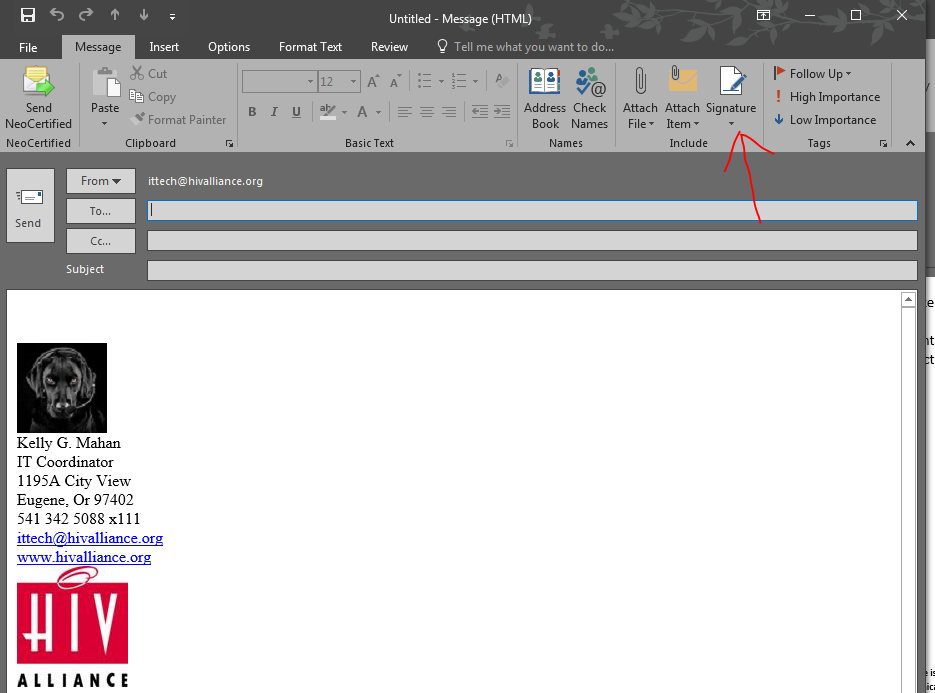
- You will see an Email Signatures tab. Click on the New option to create a new signature.
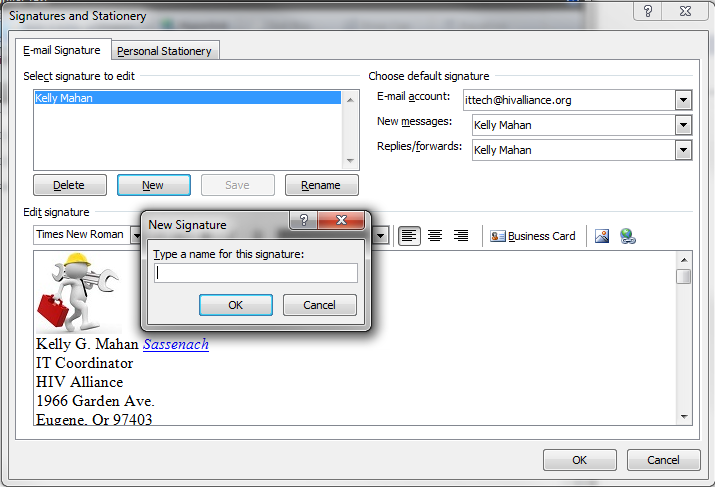
- Enter a new name for your signature and then click the OK button.
- Navigate to the Edit Signature field and enter the text you want for your new signature.
Please include the following confidential statement…
Information contained in this message may be privileged and confidential and protected from disclosure. If the reader of this message is not the intended recipient, or an employee or agent responsible for delivering this message to the intended recipient, you are hereby notified that any dissemination, distribution or copying of this communication is strictly prohibited. If you have received this communication in error, please notify us immediately by replying to the message and deleting it from your computer. Thank you.
- After entering the text, format it using the style and formatting buttons.
- Click the OK button to finalize and save the new signature.
Below is an example of my signature….

Kelly G. Mahan
IT Coordinator
HIV Alliance
1195A City View Street
Eugene, Or 97402
541 342 5088 x111
ittech@hivalliance.org

Supporting individuals living with HIV/AIDS and preventing new infections.
Information contained in this message may be privileged and confidential and protected from disclosure. If the reader of this message is not the intended recipient, or an employee or agent responsible for delivering this message to the intended recipient, you are hereby notified that any dissemination, distribution or copying of this communication is strictly prohibited. If you have received this communication in error, please notify us immediately by replying to the message and deleting it from your computer. Thank you.
Was this article helpful?
That’s Great!
Thank you for your feedback
Sorry! We couldn't be helpful
Thank you for your feedback
Feedback sent
We appreciate your effort and will try to fix the article