How do I get access to a Database?
In this example, we show you the steps to setup access to the NEX database.
This will all happen on the remote server Jedi so please log into Jedi and follow these steps.
Open the prevention folder and go to Databases (CTRS, NEX, MSM, HCV) and then NEX.
Prevention\Databases (CTRS, NEX, MSM, HCV)\NEX
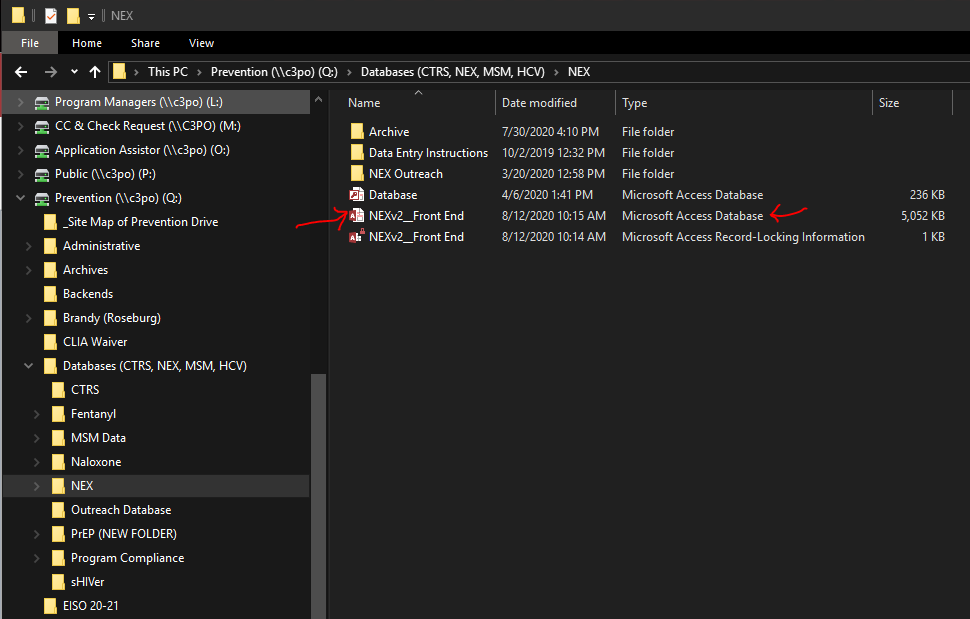
Find the NEXv2_Front End and right click on it and then select copy from the pop out menu.
NOTE: do not select the NEXv2_Front End Record-Locking Information file.
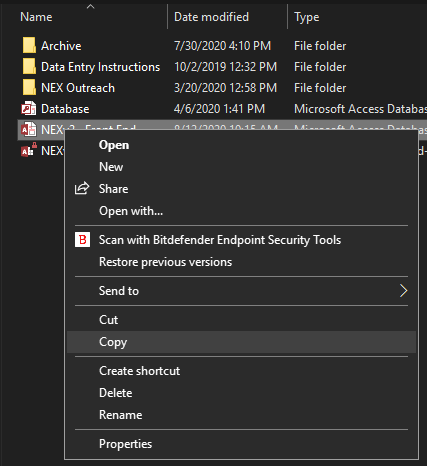
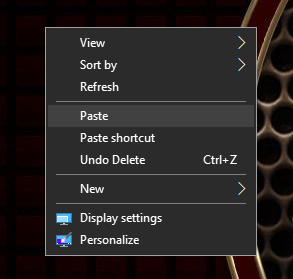
Now in an empty space on your desktop right click and select Paste from the pop out menu.
Now double click on the file you just pasted to your desktop to open the database.
- When the database opens please go to the External Data tab
- Then click on the Linked Table Manager
- When the Linked Table Manager window opens click on the Select all button on the right
- Put a checkmark in the ‘Always prompt for new location’. lower left.
- And then click Ok at the top of that window.
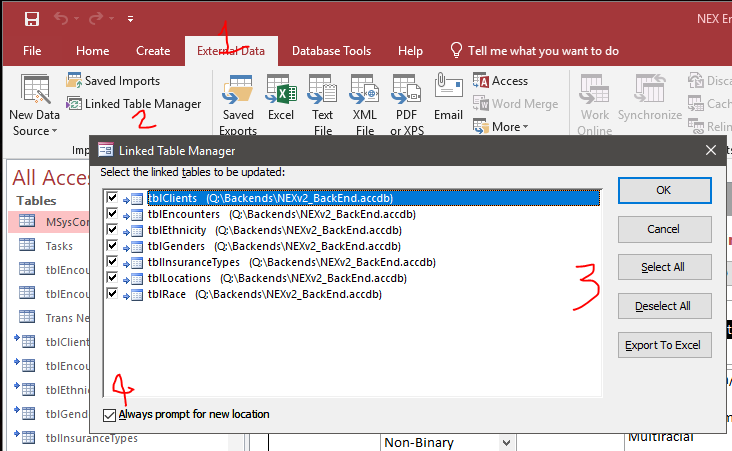
Now you need to show the front end where the back end is.
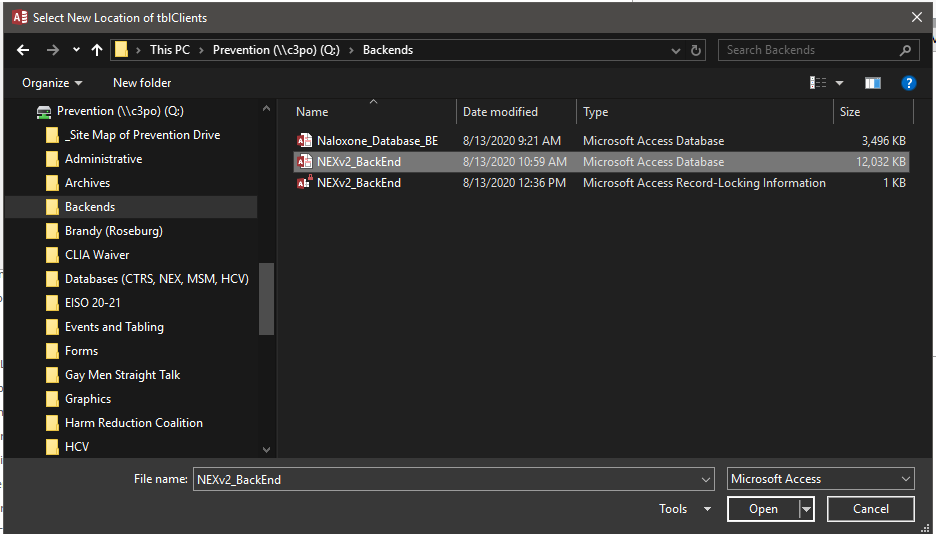
Navigate to Prevention/Backends and select the NEXv2_BackEnd Microsoft Access Database file and then click the Open button.
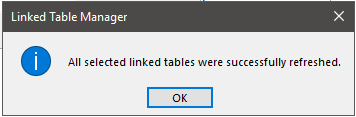
That is it, Click the OK button and close the ‘Linked Table Manager’ window.
Was this article helpful?
That’s Great!
Thank you for your feedback
Sorry! We couldn't be helpful
Thank you for your feedback
Feedback sent
We appreciate your effort and will try to fix the article