NOTE: This is applicable only to the HP printers in Medford and Salem offices.
1. In the search bar at the bottom of your screen, type “printer” and click on “Printers & scanners: system settings.”
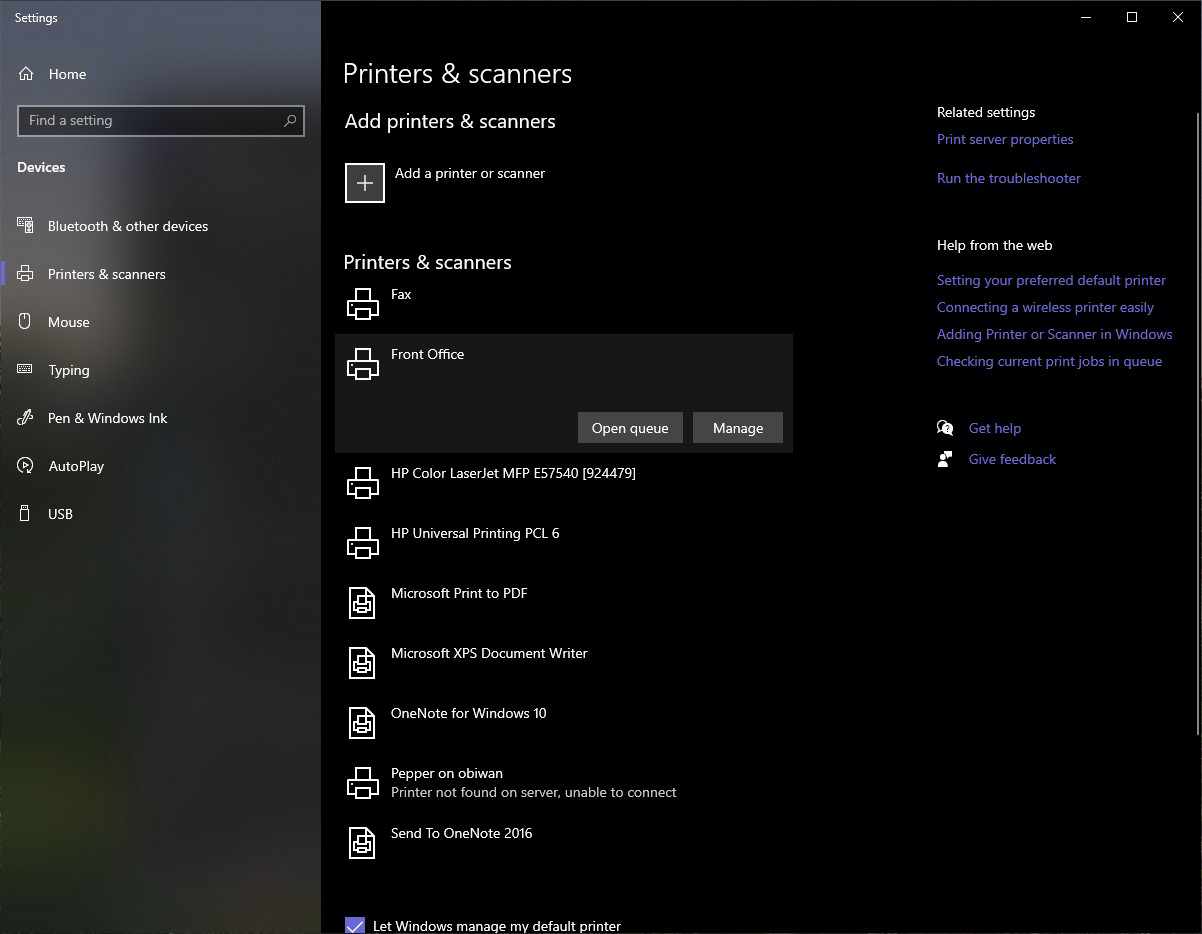
2. Once in the “Printers & scanners” settings window, click on your office’s primary printer. In my office it’s called “Front Office.” And then click the “Manage” button.
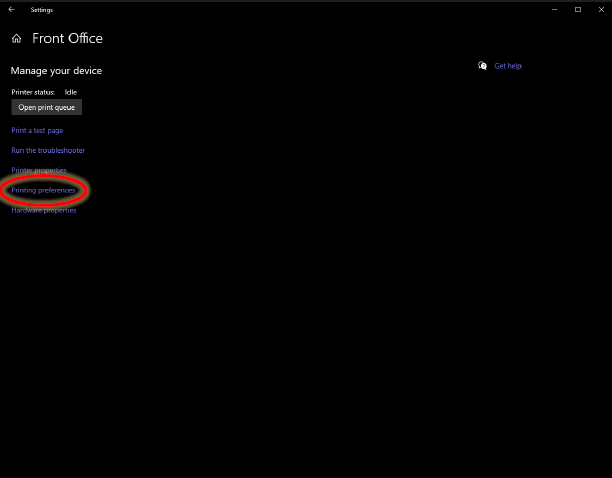
3. On this page, click “Printing preferences.”
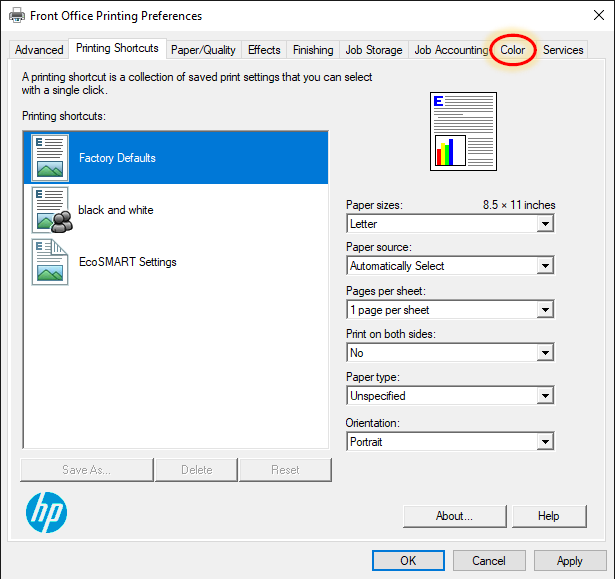
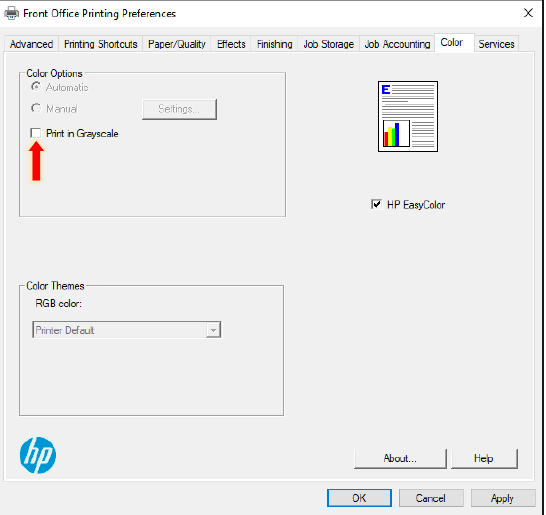
4. Now the Printing Preferences page should be open with the “Printing Shortcuts” tab showing. Then, click on the “Color” tab.
5. In the “Color” tab, click “Print in Grayscale” and make sure you have “Black only” selected in the drop down menu.
6. Go back to the “Printing Shortcuts” page, click “Save As…” and name your new preset “Black and white” (The new one I made for this training is called “Black and white 2”).
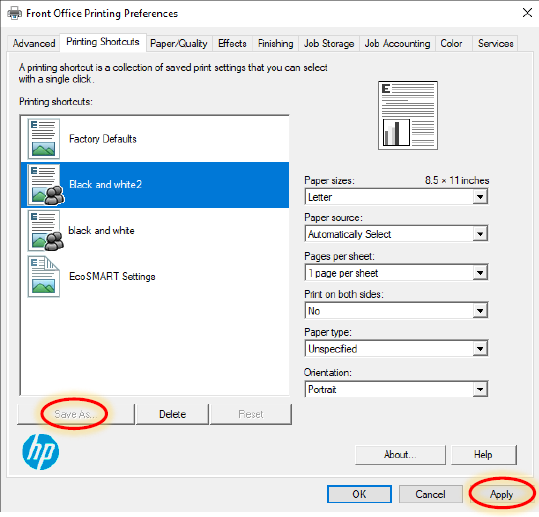
7. Click “Apply” and then “OK.” Your computer should now automatically print in black and white.
NOTE: Sometimes you have to restart a web browser for this change to come into effect, and you may have to do it manually in Microsoft edge.
Created by Ollie Harkola
Was this article helpful?
That’s Great!
Thank you for your feedback
Sorry! We couldn't be helpful
Thank you for your feedback
Feedback sent
We appreciate your effort and will try to fix the article