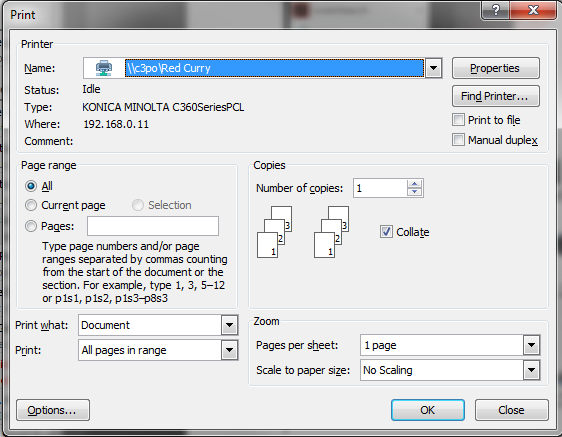
In the print window of the document you wish to print, click on Properties.
In the Red Curry Printer Preferences verify that the Select Color box at the bottom of the window is set to Auto Color.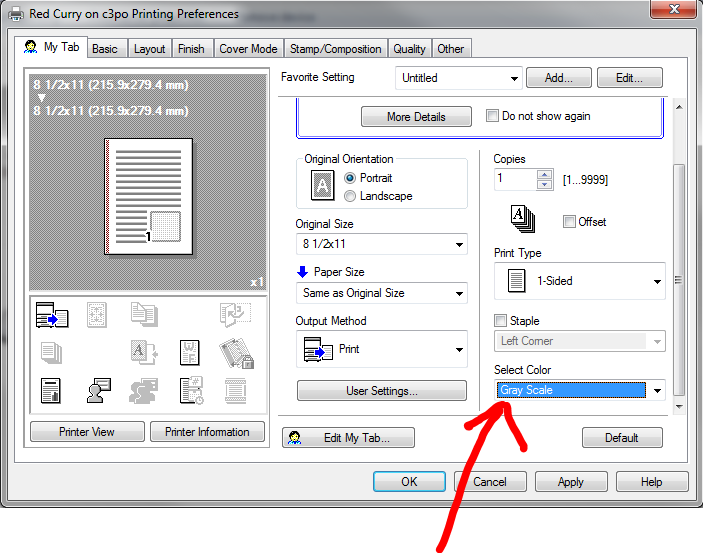
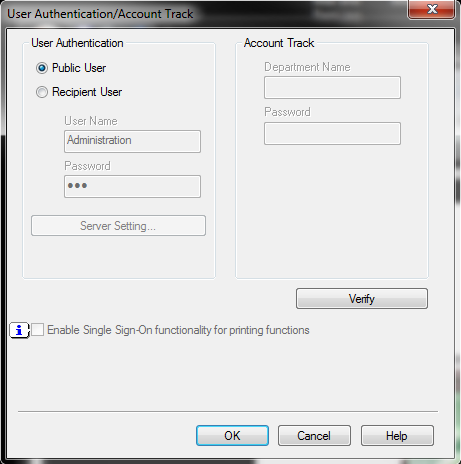
In the Account Track window:
The Public User is the default user and is used for black and white.
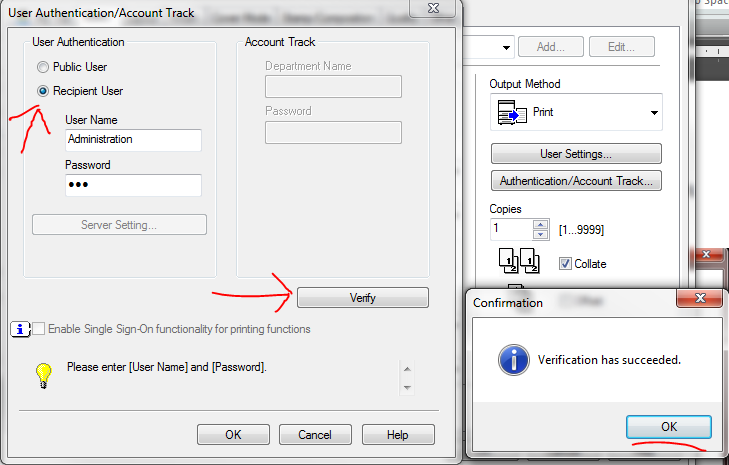
To setup color printing, select the Recipient User and enter the correct department User Name and Associated Password. Now verify the department credentials by clicking on the Verify button. You should see the Confirmation window appear.
*PLEASE ASK YOUR MANAGER FOR CURRENT COLOR PASSWORD.
Now click OK in the Confirmation window, then OK in the Account Track window, then OK in the Red Curry Preferences window, and then OK in the Print window.
Your print will print in color to Red Curry located upstairs in the City View building.
IMPORTANT!
Next time you print to Red Curry you will be printing in color unless your change back to Public User in the Account Track window. Simply follow the steps above and switch back to the Public User.
Was this article helpful?
That’s Great!
Thank you for your feedback
Sorry! We couldn't be helpful
Thank you for your feedback
Feedback sent
We appreciate your effort and will try to fix the article