You must have Administrator permissions to install the printers
Right click on the start button and choose Settings. In the setting select Devices, Bluetooth, Printers, Mouse. The click Printers & Scanners.
If you see Red Curry or Green Curry, click on them and choose Remove Device. Ignore it if it says Red or Green Curry on Obiwan. Remove it if it shows Red or Green Curry on C3PO.
Scroll down and uncheck Let Windows manage my default printer. Minimize those settings for now.
Download and extract these files to C:\SW_Install
https://cscsupportftp.mykonicaminolta.com/DownloadFile/Download.ashx?fileversionid=42106&productid=2492
RED CURRY
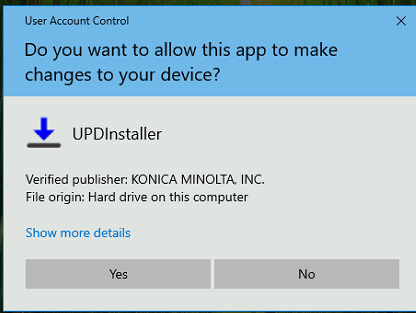
Browse to C:\SW_Install\KM_UniversalDriver_PCL_FAX_3.9.819.0_PS_3.9.820.0\Driver\PS and double click on UPDSetup64. Choose Yes to allow changes
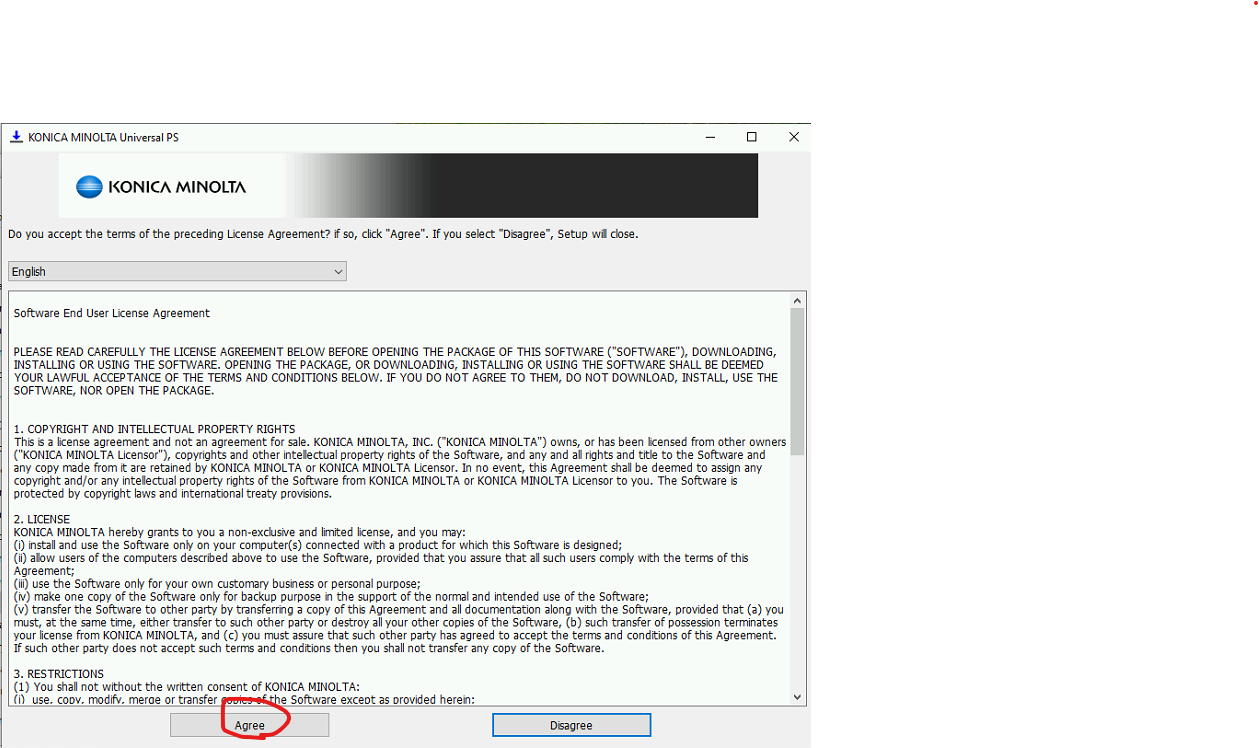
Choose Agree:
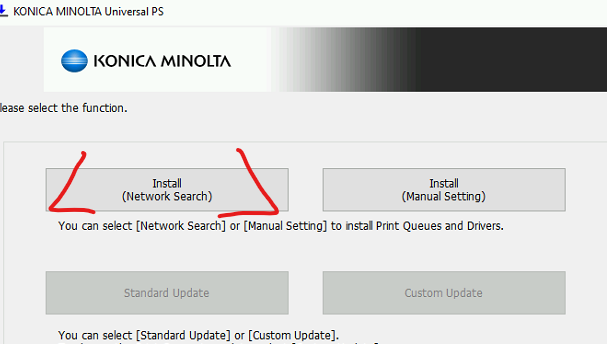
Choose Install (Network Search)
For Red Curry put a checkmark next to KONICA MINOLTA bizhub C751i (172.16.0.204)
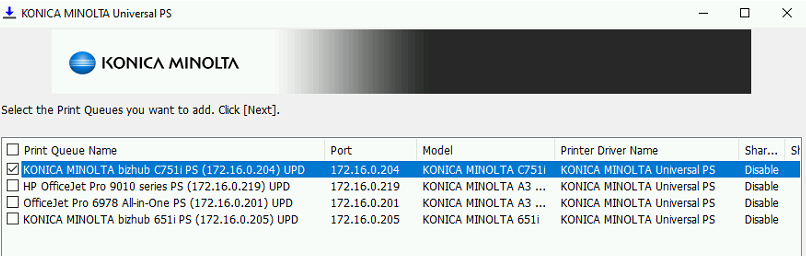
And click Details
In the Print Queue Name box, delete what is there and type Red Curry In the Admin Settings put a check next to 1-Sided: Default and Gray Scale: Default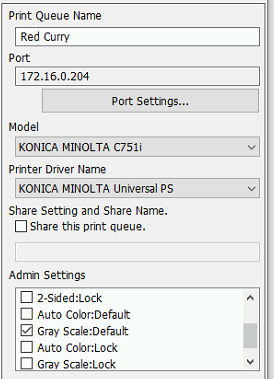
Choose Next and then Install.
Choose Ok when the install completes.
Go back to the printer settings
Select Red Curry and click the Manage Button
Click Printing preferences, wait and click it again. Looking for this window:
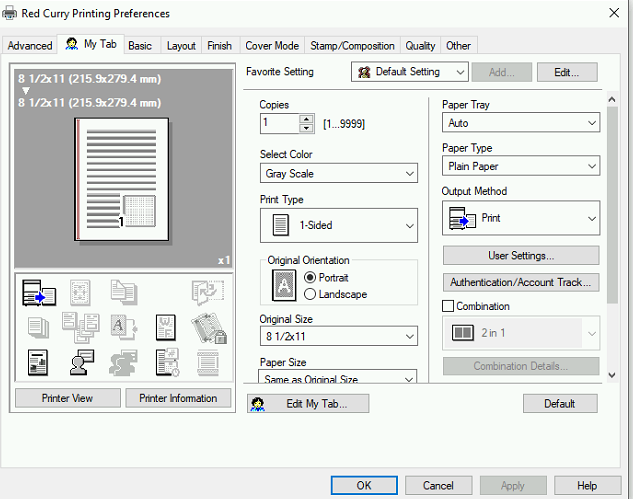
Click Authentication/Account Track Button
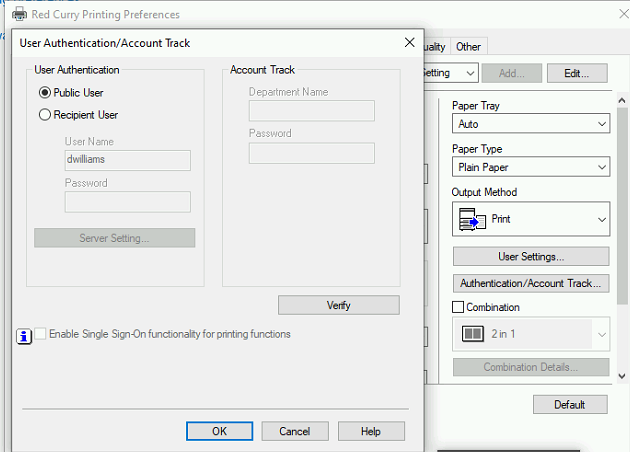
Then click Public User and OK. Then click Apply and OK.
Then Click Printer Properties
Click the Settings Tab
Click Authentication Settings
Put check next to the top two lines for Verify and Popup 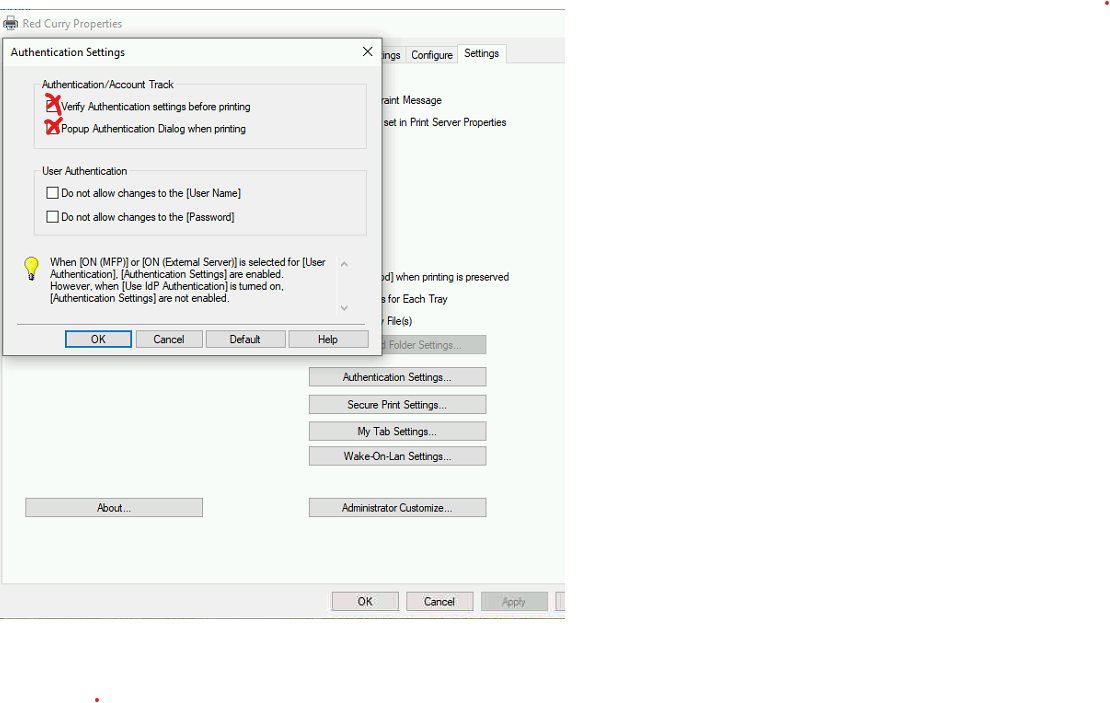
Click OK. Then click Apply and OK.
Click the Set as default button
Return to previous window if you are going to install Green Curry.
GREEN CURRY
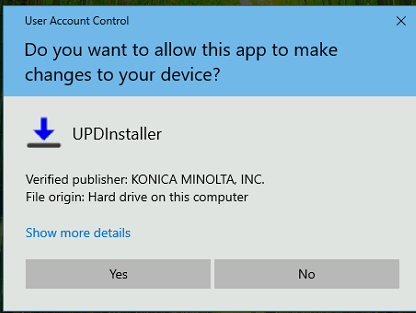
Browse to C:\SW_Install\KM_UniversalDriver_PCL_FAX_3.9.819.0_PS_3.9.820.0\Driver\PS and double click on UPDSetup64. Choose Yes to allow changes
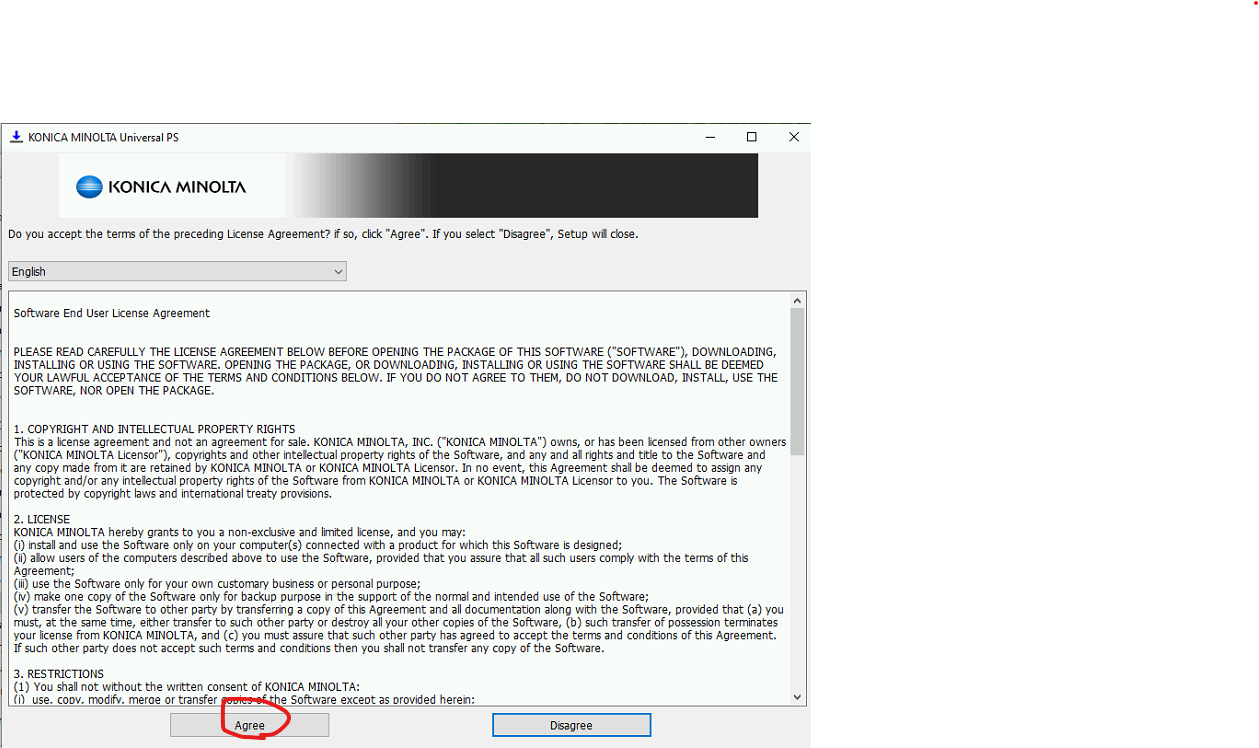
Choose Agree:
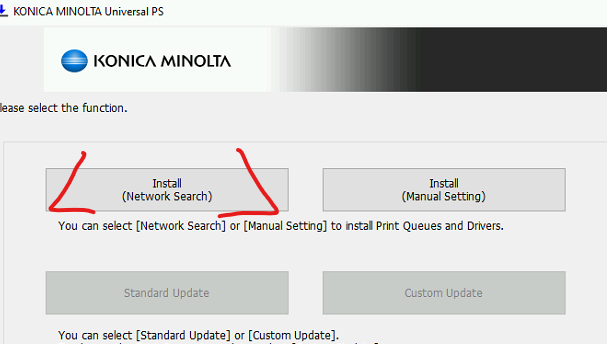
Choose Install (Network Search)
For Green Curry put a checkmark next to KONICA MINOLTA bizhub C651i (172.16.0.205)
Click to open Details
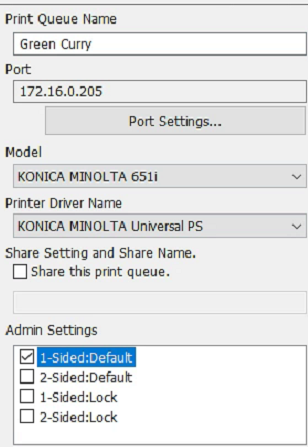
In the Print Queue Name box, delete what is there and type Green Curry In the Admin Settings put a check next to 1-Sided: Default
Click Next and then click install.
Click OK
For Green Curry you are finished.
Was this article helpful?
That’s Great!
Thank you for your feedback
Sorry! We couldn't be helpful
Thank you for your feedback
Feedback sent
We appreciate your effort and will try to fix the article