Set your default printer to print double-sided every time.
Follow the steps provided below.
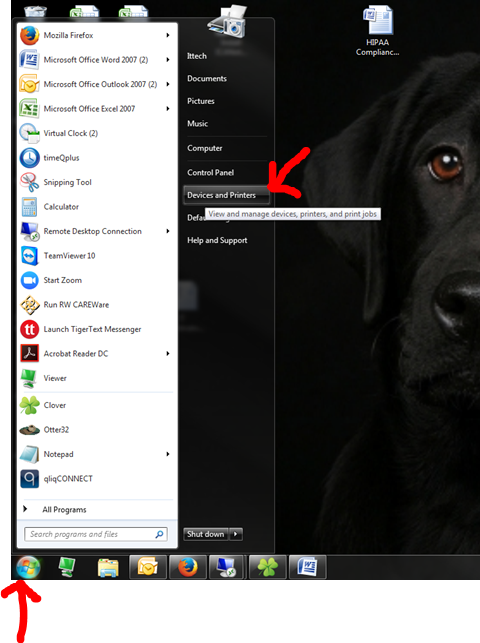
Click on the start button and then click on the Devices and Printers button.
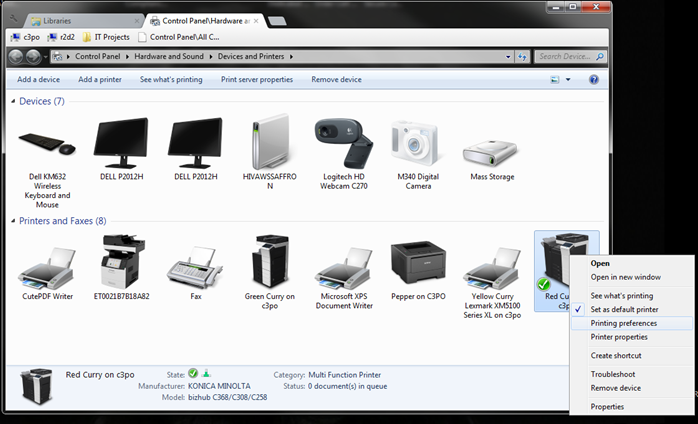
Now right click on your default printer (Red or Green Curry with a green check mark) and then click on Printer Preferences.
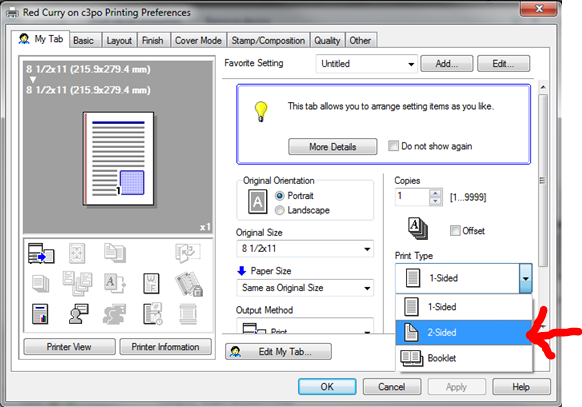
Now In the Printer Preferences window click the down arrow next to 1-sides and then select 2-sided.
Wait a second….. Then click the Apply button and then the OK button.
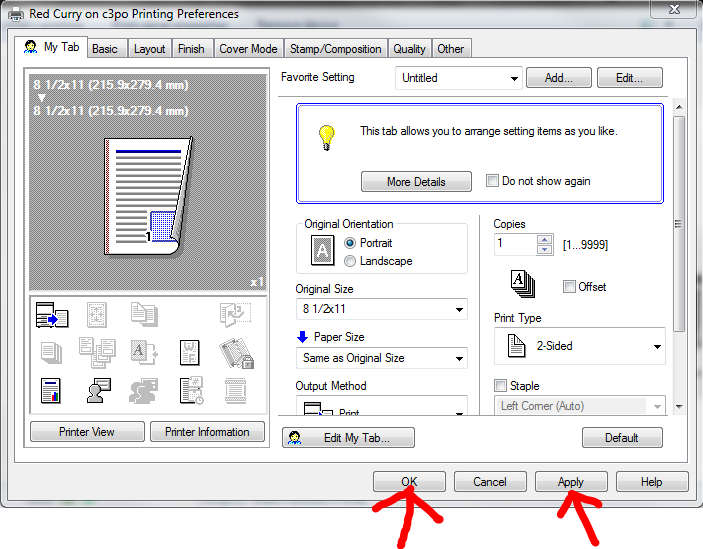
This will make every print to that printer double sided.
Was this article helpful?
That’s Great!
Thank you for your feedback
Sorry! We couldn't be helpful
Thank you for your feedback
Feedback sent
We appreciate your effort and will try to fix the article