Users with distribution list management rights in Outlook 365 can typically edit the distribution list through the following method:
Using Outlook on the Web (OWA)
This is generally the recommended method for non-administrative users to manage distribution lists they own or have management permissions for.
- Sign in to Outlook on the Web: Open your web browser and go to https://outlook.office.com/. Log in with your Microsoft 365 account credentials.
- Access Distribution Groups:
- Click the Settings icon (gear icon) in the top right corner.
- Select General, then Distribution groups.
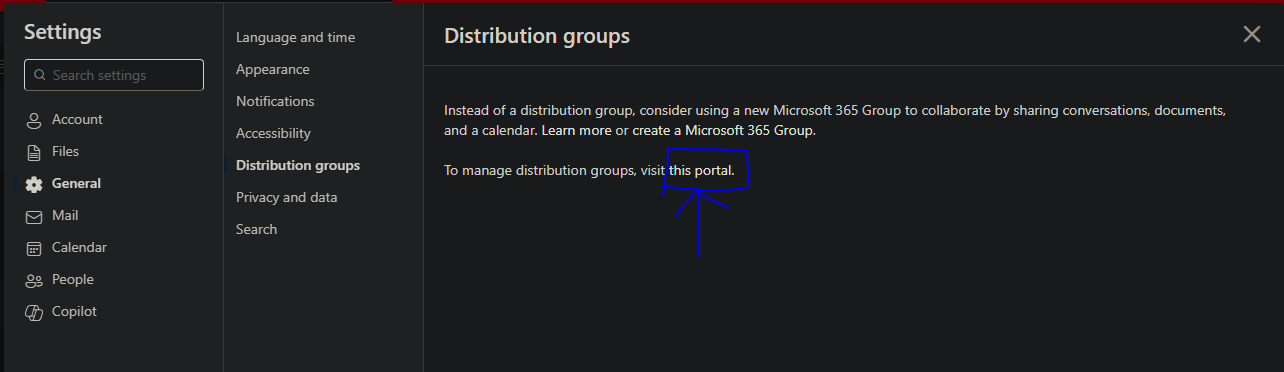
- You might be redirected to an older portal page with an ECP URL (Exchange Control Panel). This is normal.
- Alternatively, you might see a direct link to "Groups I own" or similar. Look for a section related to distribution groups you manage.
- Select the Distribution List: In the list of distribution groups you own or manage, select the one you want to edit.
- Edit the Distribution List:
- Once you select the list, you should see options to:
- View and manage members: Add or remove members from the list. Look for options like "Members," "View all and manage members," "Add members" (+ icon), or a "Remove" button (-) next to members.
- Manage owners: Add or remove other users who can also manage the list. Look for "Manage owners" or similar.
- Edit general settings: Change the display name, description, or other basic properties of the list.
- Manage membership approval: Configure whether users can join/leave the list freely, require owner approval, or if only owners can add/remove members.
- Manage delivery management: Specify who can send emails to the distribution list (e.g., only internal senders, or both internal and external). You might be able to add specific senders who are allowed.
- Manage message approval: Set up moderation for the list, where messages need to be approved by a moderator before being sent to all members.
- Email options: Configure settings like allowing external replies, etc.
- Once you select the list, you should see options to:
- Save Changes: After making the necessary changes, make sure to click Save or Apply to update the distribution list.
Important Considerations:
- Permissions are Key: You must have been explicitly granted the rights to manage the specific distribution list you want to edit. If you don't see the options described above, you likely do not have the necessary permissions. Contact your IT administrator to request these rights.
- Interface Changes: Microsoft 365 is constantly being updated, so the exact steps and layout of the interface might vary slightly.
- New Outlook for Windows: As of late 2023 and early 2024, managing distribution groups directly within the "new" Outlook for Windows is limited, and users are often redirected to the Outlook on the Web interface (or the Exchange Admin Center for administrators).
- Exchange Admin Center (EAC): While end-users with management rights might be able to access some features through the OWA portal that redirects to the ECP, the full Exchange Admin Center (https://admin.exchange.microsoft.com/) is primarily used by administrators.
If you encounter difficulties or don't see the options to edit the distribution list, submit a ticket to IT here: https://hivalliance.freshdesk.com/support/home
Was this article helpful?
That’s Great!
Thank you for your feedback
Sorry! We couldn't be helpful
Thank you for your feedback
Feedback sent
We appreciate your effort and will try to fix the article