Multi-factor Authentication (MFA) is an authentication method that requires the user to provide two or more verification factors to gain access to a resource such as an application, online account, or a VPN. MFA is a core component of a strong identity and access management (IAM) policy. Rather than just asking for a username and password, MFA requires one or more additional verification factors, which decreases the likelihood of a successful cyber-attack.
Please follow the prompts and the instructions below.
Step 1:
Select Authentication phone, United States (+1), Enter your cell phone number 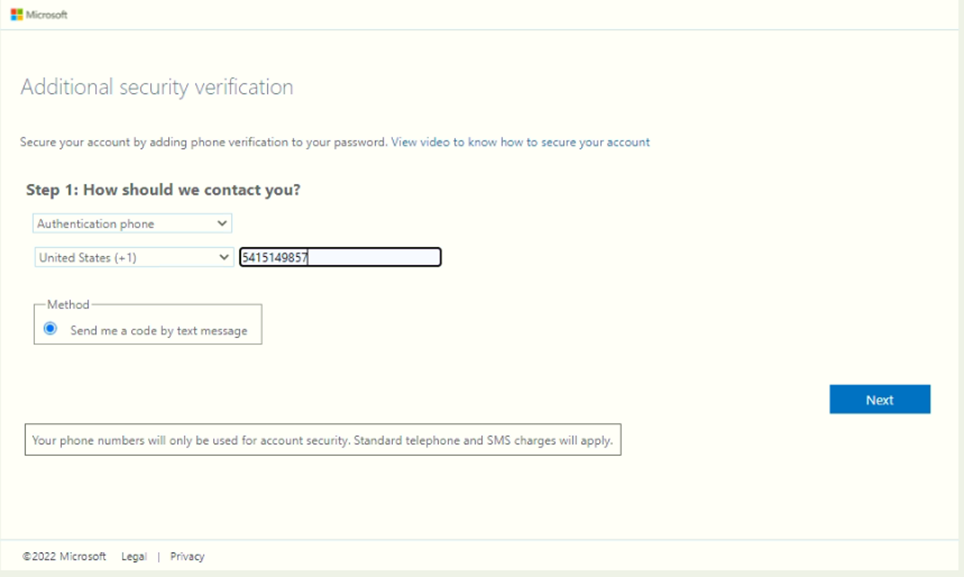
Step 2:
You will receive a verification code (text) on your phone
Enter the code in the space provided below and click the ‘Verify’ button. 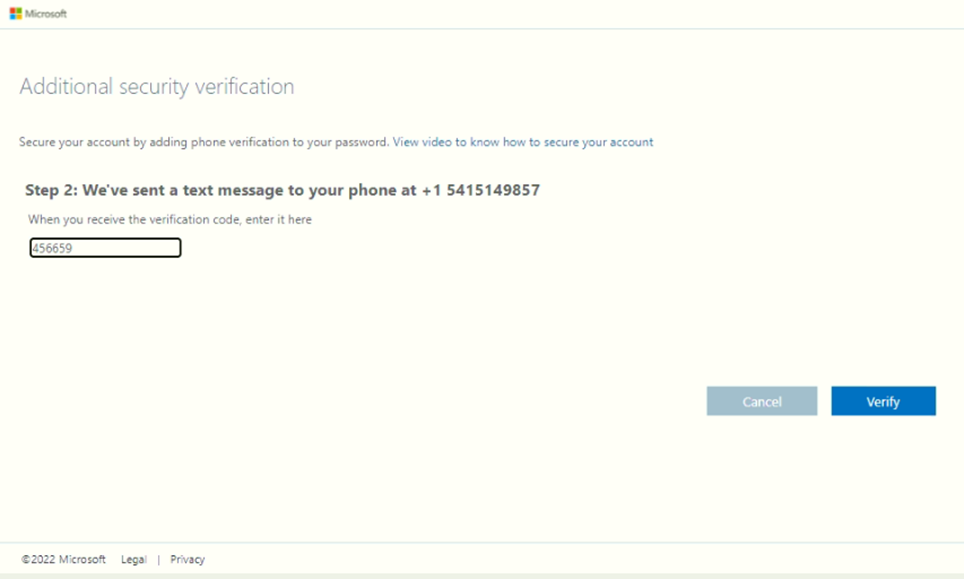
Step 3:
Click the ‘Done’ button, if asked 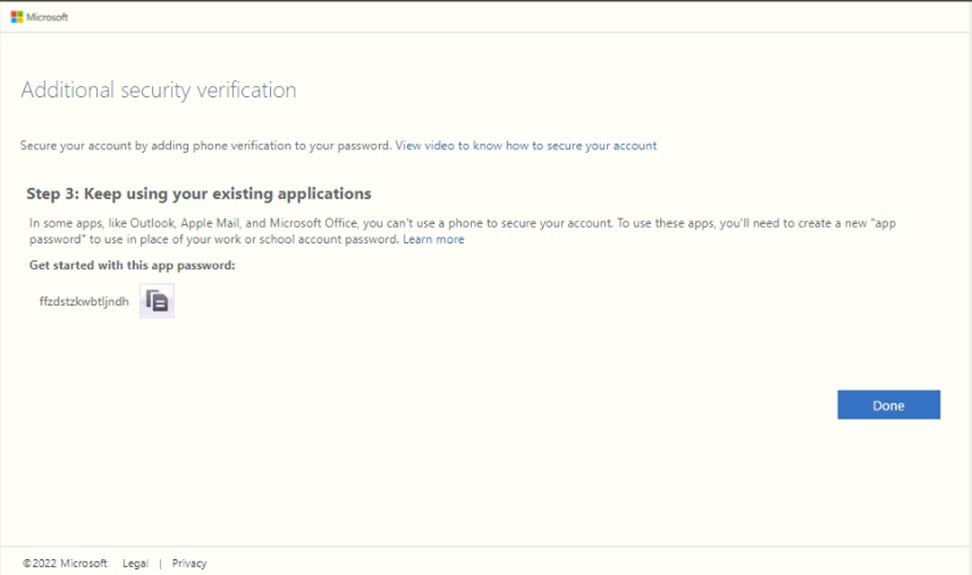
Next time you log into your email, or any Microsoft application, you will get a verification code on your phone via text.
Enter that code when prompted and there you go.
It you ever get a code when you have not logged into your email, or any Microsoft application, yourself, IT needs to know asap.
Now if you would like to setup the Microsoft Authenticator app on your phone so you can just verify access and not have to input a code? While logged into your mail, click this link, https://aka.ms/mfasetup, and follow the instructions.
Step A
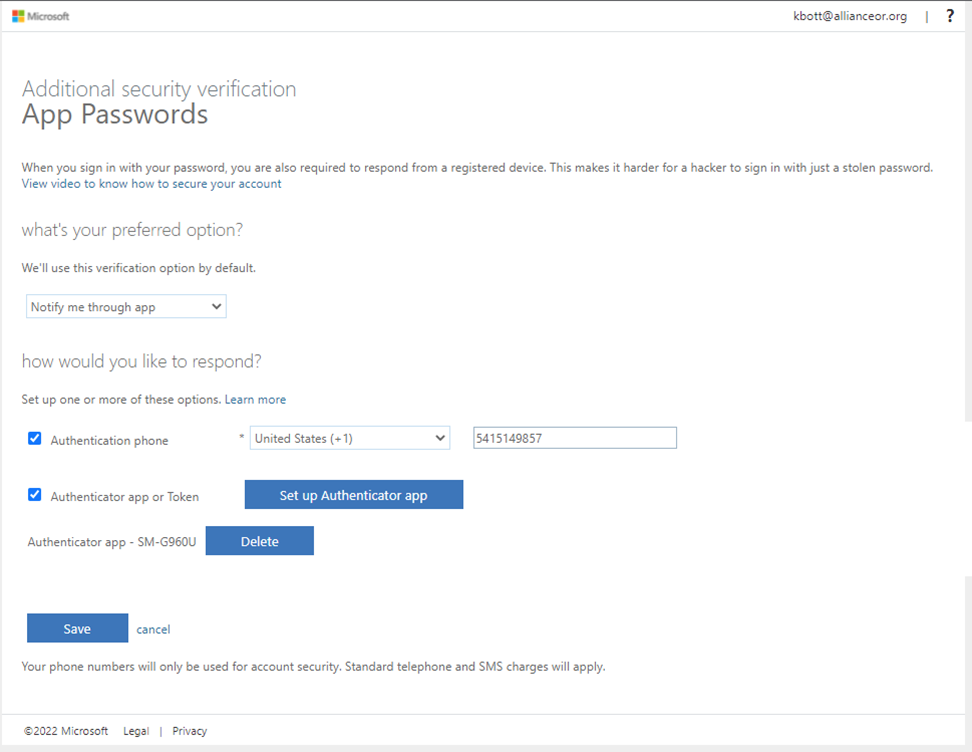
Click the down arrow and select ‘Notify me through app’.
Put a checkmark in the ‘Authenticator app or Token’.
Then click on the “Set up Authenticator app” button. 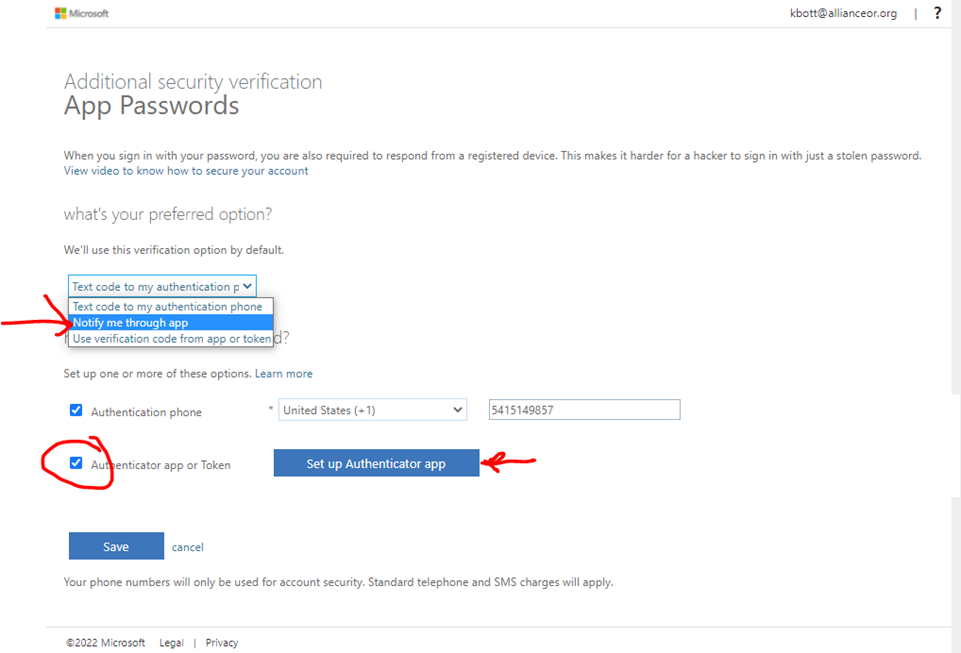
Step B
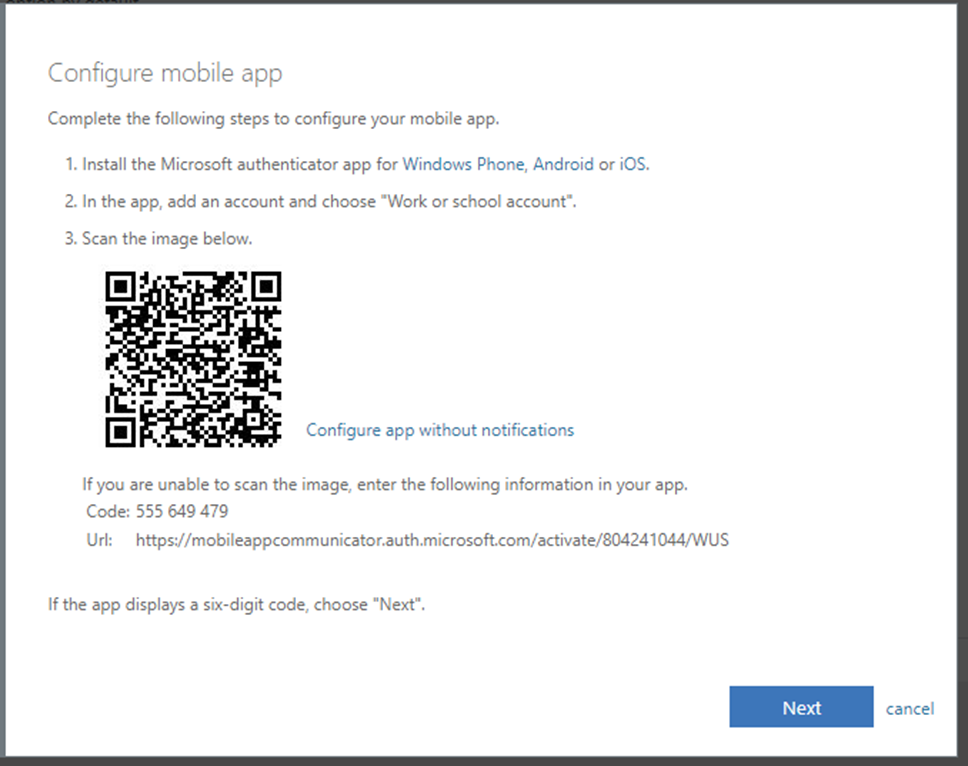
Follow the instruction here carefully and then click the ‘Next” button.
Step C
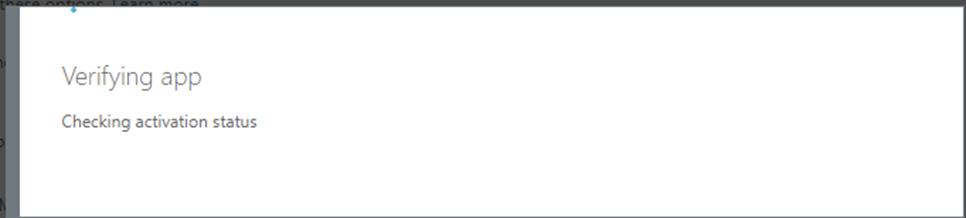
Let the Verification complete.
A message will appear on your phone tap approve.
Step D
Click the “Save’ Button.
Step E
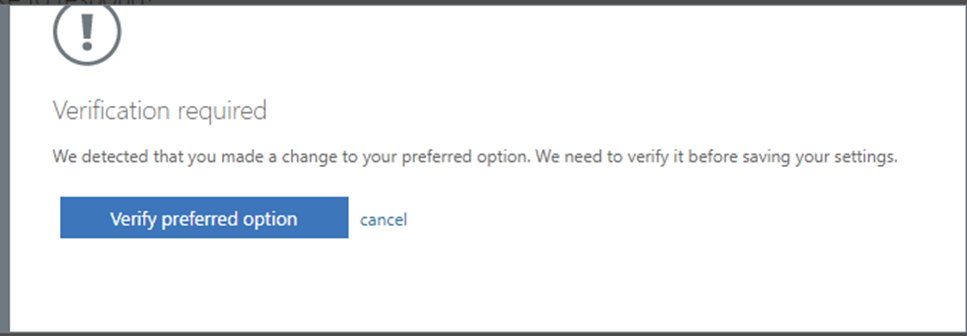
If asked click ‘Verify preferred options’ button and authorize again on your phone.
Click the ‘Close’ button and you are set. 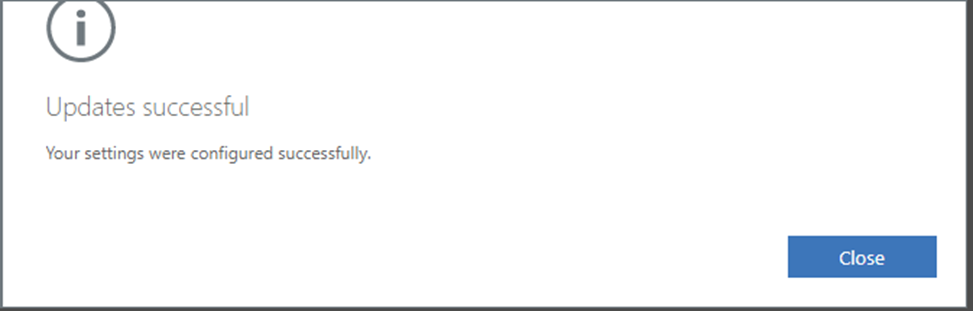
Was this article helpful?
That’s Great!
Thank you for your feedback
Sorry! We couldn't be helpful
Thank you for your feedback
Feedback sent
We appreciate your effort and will try to fix the article